
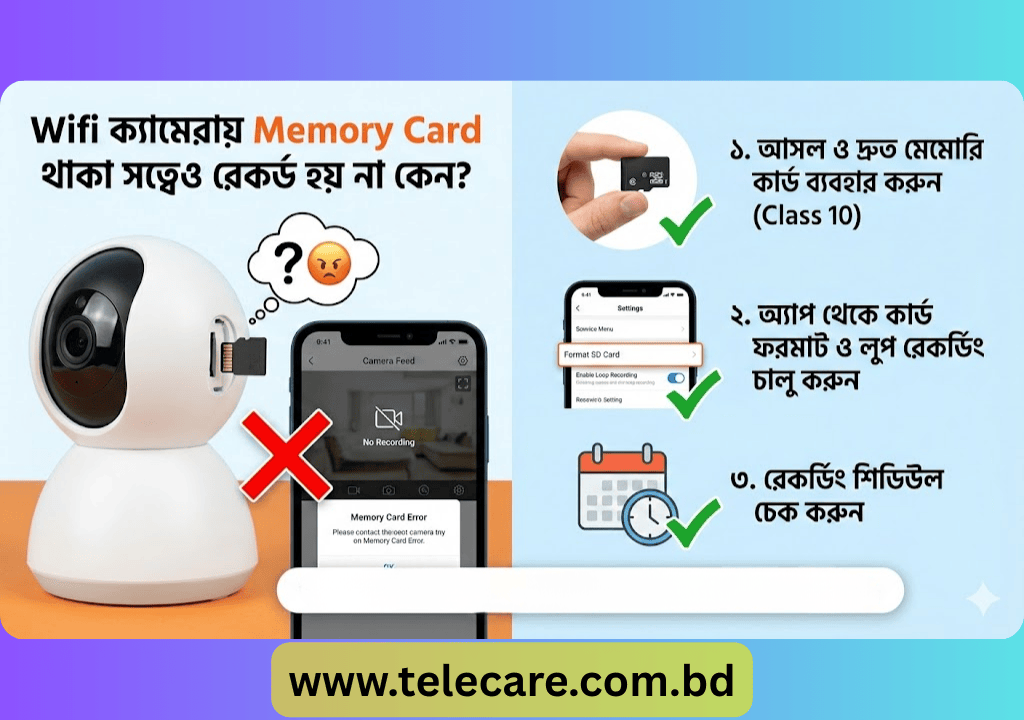
Wi-Fi Camera Not Recording? 5 Reasons Your Memory Card Isn’t Working (And How to Fix It!)
You’ve invested in a Wi-Fi camera for peace of mind, inserted a memory card, but when you need to check footage, there’s nothing there. Frustrating, right? This is a common issue for many smart camera users. Don’t worry, you’re not alone, and most of these problems have simple solutions.
Let’s dive into the top reasons your Wi-Fi camera might not be recording, even with a memory card installed, and how you can fix them.
1. You’re Using a Fake or Low-Quality Memory Card
This is perhaps the most frequent culprit. Many users opt for cheaper, generic, or counterfeit memory cards to save a few bucks. While they might appear to work initially, these cards often fail under the continuous demands of a security camera.
-
The Problem: Fake cards have slow read/write speeds, unreliable storage capacity (often much lower than advertised), and poor durability. They can corrupt footage, stop recording unexpectedly, or simply not be recognized by the camera.
-
The Solution: Always invest in genuine, branded Class 10 (or higher, e.g., U1 or V10 for 1080p footage) microSD cards from reputable manufacturers like SanDisk, Samsung, Kingston, or Lexar. These cards are designed for continuous recording and offer the necessary speed and reliability.
2. The Memory Card Isn’t Formatted Correctly
Just like a new hard drive or USB stick, a new memory card often needs to be formatted before it can be used by your Wi-Fi camera.
-
The Problem: If the card isn’t formatted to a file system compatible with your camera (usually FAT32 or exFAT), the camera won’t be able to write data to it.
-
The Solution:
-
Insert the memory card into your Wi-Fi camera.
-
Open the camera’s dedicated mobile app.
-
Navigate to the camera’s settings or storage settings.
-
Look for an option like “Format SD Card,” “Initialize Memory Card,” or “Storage Management.”
-
Tap to format the card. This will erase all data on the card and prepare it for your camera.
-
3. Recording Options Are Disabled in the App
It sounds obvious, but sometimes the simplest settings can be overlooked. Many Wi-Fi cameras offer various recording modes, and if the continuous or motion-triggered recording isn’t enabled, the camera won’t save footage.
-
The Problem: Your camera might be in “standby” mode, only taking snapshots, or a specific recording schedule might be turned off.
-
The Solution:
-
Open your camera’s mobile app.
-
Go to the specific camera’s settings.
-
Look for “Recording Settings,” “Storage Settings,” or “Motion Detection Settings.”
-
Ensure that “Continuous Recording,” “Motion-Triggered Recording,” or your desired “Recording Schedule” is enabled. Also, check if “Event Recording” is on for specific alerts.
-
4. Loop Recording is Not Activated (Memory Card Full)
Memory cards have finite space. If your camera is set to record continuously, it will eventually fill up. Without “loop recording,” the camera will stop recording once the card is full.
-
The Problem: Your camera records until the card has no free space left, then stops.
-
The Solution:
-
Access your camera’s settings within the mobile app.
-
Find “Storage Settings” or “Recording Settings.”
-
Look for an option called “Loop Recording,” “Overwrite Old Files,” or “Circular Recording.”
-
Enable this feature. When enabled, the camera will automatically delete the oldest footage to make space for new recordings once the card is full.
-
5. Memory Card Speed is Too Slow for High-Quality Video
While a Class 10 card is generally recommended, if your camera records in very high resolutions (e.g., 4K) or at high frame rates, even a standard Class 10 card might struggle to keep up.
-
The Problem: The card cannot write data fast enough, leading to dropped frames, corrupted files, or the camera stopping recording altogether to prevent data loss.
-
The Solution: For cameras recording in 1080p, a Class 10 (U1) card is usually sufficient. For 2K or 4K resolutions, consider a U3 or V30 speed class microSD card. These offer significantly faster write speeds, ensuring smooth and uninterrupted recording of high-resolution video.
Quick Troubleshooting Checklist:
-
Check Card Authenticity: Is your microSD card genuine and from a reputable brand?
-
Format the Card: Have you formatted the card using the camera’s app?
-
Enable Recording: Are continuous or motion-triggered recording options enabled in the app settings?
-
Loop Recording: Is “Loop Recording” or “Overwrite” enabled to prevent the card from filling up?
-
Card Speed: Is your card’s speed class appropriate for your camera’s recording resolution?
-
Reboot: Try restarting your Wi-Fi camera and router.
-
Firmware: Ensure your camera’s firmware is up to date.
By following these steps, you should be able to diagnose and fix most common recording issues with your Wi-Fi camera. Keep your home or office secure with reliable video surveillance.
Wifi ক্যামেরায় মেমোরি কার্ড আছে, তবুও রেকর্ড হচ্ছে না? জেনে নিন আসল কারণগুলো
নিরাপত্তার জন্য শখ করে Wifi ক্যামেরা লাগালেন, মেমোরি কার্ডও দিলেন, কিন্তু প্রয়োজনের সময় দেখলেন কোনো ফুটেজ রেকর্ডই হয়নি! এর চেয়ে বিরক্তিকর আর কী হতে পারে?
আসুন জেনে নিই, মেমোরি কার্ড থাকা সত্ত্বেও কেন এমনটা হয় এবং এর সমাধান কী:
১. নকল বা নিম্নমানের মেমোরি কার্ড (Fake Memory Card): বেশিরভাগ সময় কম দামি বা লোকাল মেমোরি কার্ড ব্যবহার করলে ক্যামেরায় সাপোর্ট করে না বা কিছুক্ষণ পর রেকর্ড বন্ধ হয়ে যায়। সিসি ক্যামেরার জন্য সবসময় Original Class 10 মেমোরি কার্ড ব্যবহার করা উচিত।
২. কার্ড ফরম্যাট না করা (Formatting Issue): নতুন মেমোরি কার্ড লাগানোর পর সেটি ক্যামেরার অ্যাপ (App) থেকে ফরম্যাট (Format) করে নিতে হয়। ফরম্যাট না করলে অনেক সময় ক্যামেরা কার্ডটি রিড করতে পারে না।
৩. রেকর্ডিং অপশন বন্ধ থাকা: অনেকে অ্যাপে গিয়ে ‘Record’ বা ‘Schedule Recording’ অপশনটি অন করতে ভুলে যান। অ্যাপের সেটিংসে গিয়ে চেক করুন রেকর্ডিং বাটনটি চালু আছে কিনা।
৪. লুপ রেকর্ডিং বন্ধ থাকা (Loop Recording Off): মেমোরি কার্ড ফুল হয়ে গেলে আগের ভিডিও ডিলিট করে নতুন ভিডিও রেকর্ড করার অপশন (Overwrite/Loop Recording) চালু না থাকলে, কার্ড ফুল হওয়ার পর রেকর্ড বন্ধ হয়ে যায়।
৫. মেমোরি কার্ডের স্পিড কম: ভিডিও রেকর্ডিংয়ের জন্য হাই-স্পিড ডাটা রাইটিং প্রয়োজন। স্লো স্পিডের কার্ড ভিডিওর লোড নিতে পারে না, ফলে ভিডিও আটকে যায় বা ব্ল্যাঙ্ক দেখায়।
টিপস: সমস্যা এড়াতে ব্র্যান্ডের জেনুইন মেমোরি কার্ড কিনুন এবং মাঝেমধ্যে অ্যাপ থেকে চেক করুন সব ঠিক আছে কিনা।