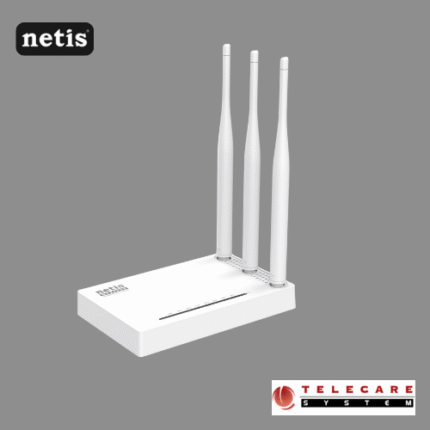

If you’re using a Netis router—like the popular Netis WF2419 or WF2780—you’ve probably seen the IP address 192.168.1.1 floating around. This simple sequence of numbers is your gateway to managing your entire home network.
It’s the default gateway address for many Netis devices, and knowing how to access it is crucial for everything from changing your Wi-Fi password to improving your network’s security.
What is 192.168.1.1?
In simple terms, 192.168.1.1 is the unique private IP address assigned to your router on your local network. It’s the “home base” for your router’s web-based configuration utility, often called the Web Management Interface or Control Panel.
This IP address falls within a reserved range used for local area networks (LANs), which is why you can’t use it to browse the public internet.
Step-by-Step: Logging into Your Netis Router
Ready to dive in? Here’s the easiest way to access the Netis login page:
1. Connect to the Network
- Make sure your device (computer, tablet, or smartphone) is connected to your Netis network, either via Wi-Fi or an Ethernet cable.
2. Open Your Browser
- Launch any web browser you prefer (Chrome, Firefox, Edge, etc.).
3. Enter the IP Address
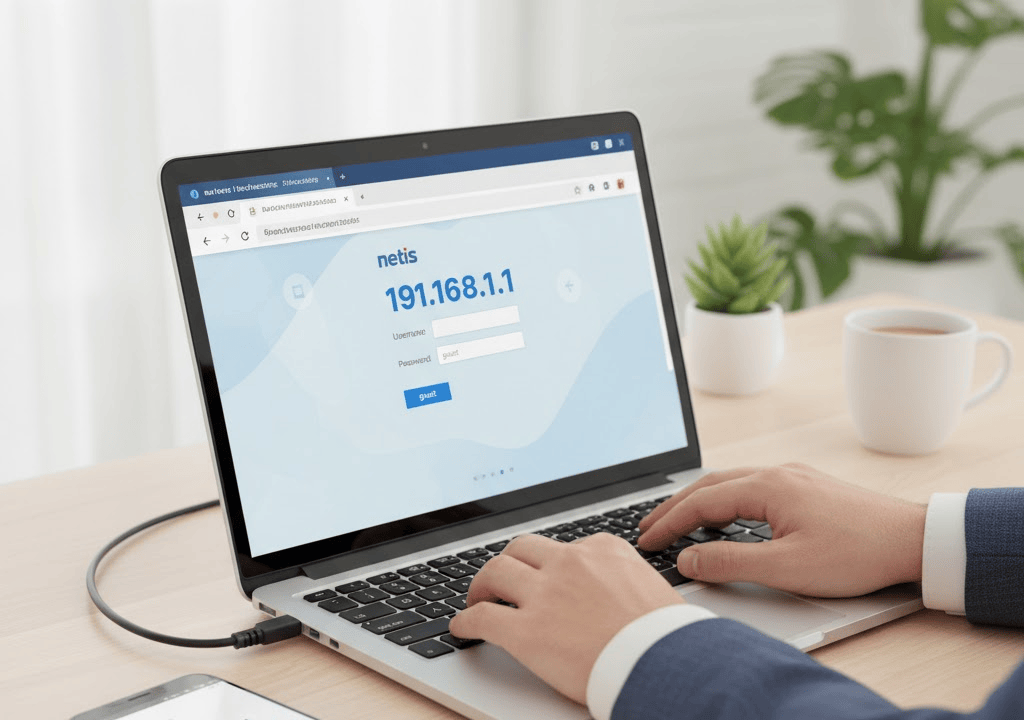
- In the browser’s address bar (where you usually type website names like https://www.google.com/search?q=google.com), type in:
192.168.1.1 - Press Enter.
4. The Login Prompt
- A login screen should appear. For most new Netis routers, the default credentials are:
- Username:
guest - Password:
guest
- Username:
- Note: Some older or specific models might use
admin/adminor have no password at all on the first login. Always check the label on the bottom of your router or its user manual ifguest/guestdoesn’t work.
5. Access Granted!
- Once logged in, you’ll be inside the Netis Control Panel.
Common Tasks in the Control Panel
Once inside the router’s settings, you can perform essential network maintenance and configuration:
- Change Wi-Fi Name & Password: Go to the “Wireless” or “Network” settings to update your SSID (network name) and set a strong, secure WPA2/WPA3 password. This is the most important security step!
- Update Firmware: Check for and install the latest firmware updates to fix bugs and improve security and performance.
- Port Forwarding: Set up rules to direct specific internet traffic to a device on your local network (useful for gaming consoles or certain servers).
- Manage Connected Devices: See who is currently connected to your network and block unauthorized users using MAC Filtering.
Troubleshooting Tips
If you can’t reach 192.168.1.1, try these quick fixes:
- Check Your Connection: Ensure the cable is securely plugged in or you are fully connected to the Wi-Fi.
- Verify the IP: Double-check that you typed
192.168.1.1correctly—don’t mistake a period for a comma! - Alternative IP: While uncommon for Netis, some routers might use
192.168.0.1. Try that if the primary IP fails. - Reset Your Router: If you’ve forgotten your custom login password, you may need to perform a factory reset (usually a small button on the back/bottom) to revert the login back to the default
guest/guest. Warning: This wipes all your settings!
Now that you know how to master the 192.168.1.1 netis gateway, go secure your network and enjoy better connectivity